Publish a Punch Card
For a Punch Card to be considered live and usable within the Loyalty platform, it must have a status of Publish.
You can publish a Punch Card from either the Punch Cards screen, or from the Punch Card Details screen.
To publish a Punch Card from the Punch Cards screen:
-
Select Campaigns from the top navigation bar, then select Punch Cards > Punch Cards from the side navigation menu. The Punch Cards screen is displayed.
-
Search for the desired Punch Card (see
-
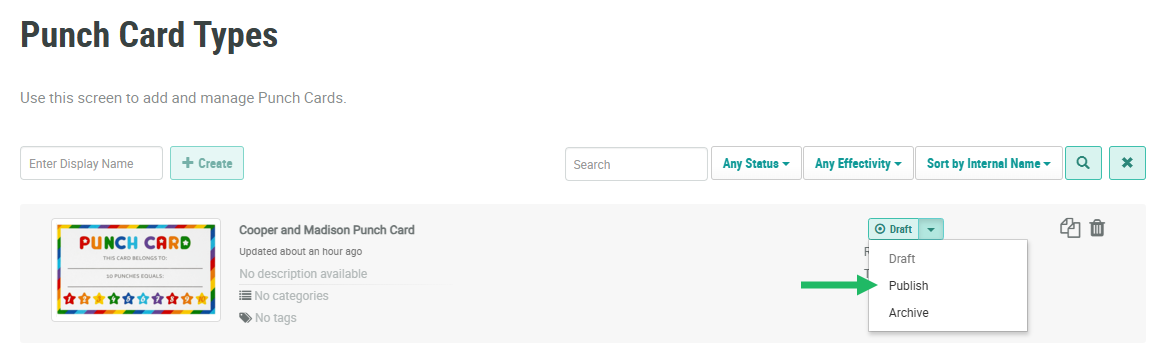
Next to the desired Punch Card, from the Status drop-down menu, select Publish. A confirmation dialog box is displayed; click Confirm.
To publish a Punch Card from the Punch Card Details screen:
-
Select Campaigns from the top navigation bar, then select Punch Cards > Punch Cards from the side navigation menu. The Punch Cards screen is displayed.
-
Search for and select the desired Punch Card (see
-
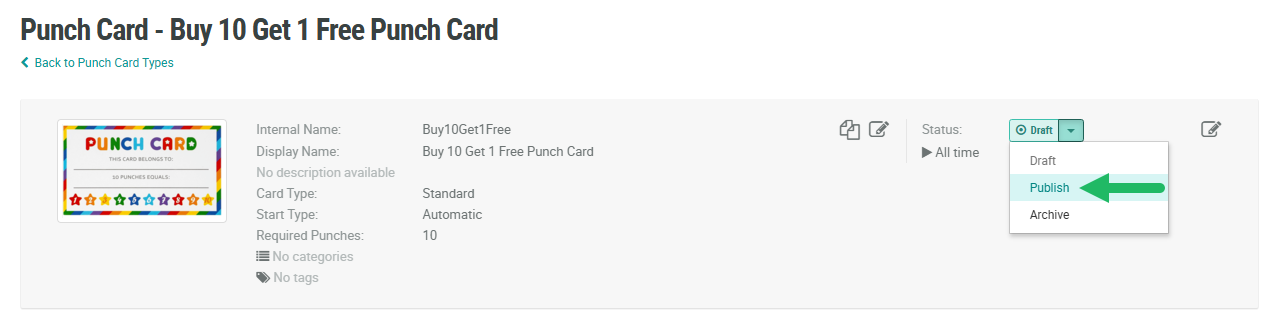
Within the header area of the screen, from the Status drop-down menu, select Publish. A confirmation dialog box is displayed; click Confirm.